Events and Notes
Events help you maintain a history of work, inspections, and observations for each hive. To open the event list from the app home screen, swipe right.
Event List
The screen shows the selected hive and its saved events. Each entry contains a type icon, name, color marker, and date and time. Tap Insert to create an event, or select an existing entry to edit it.
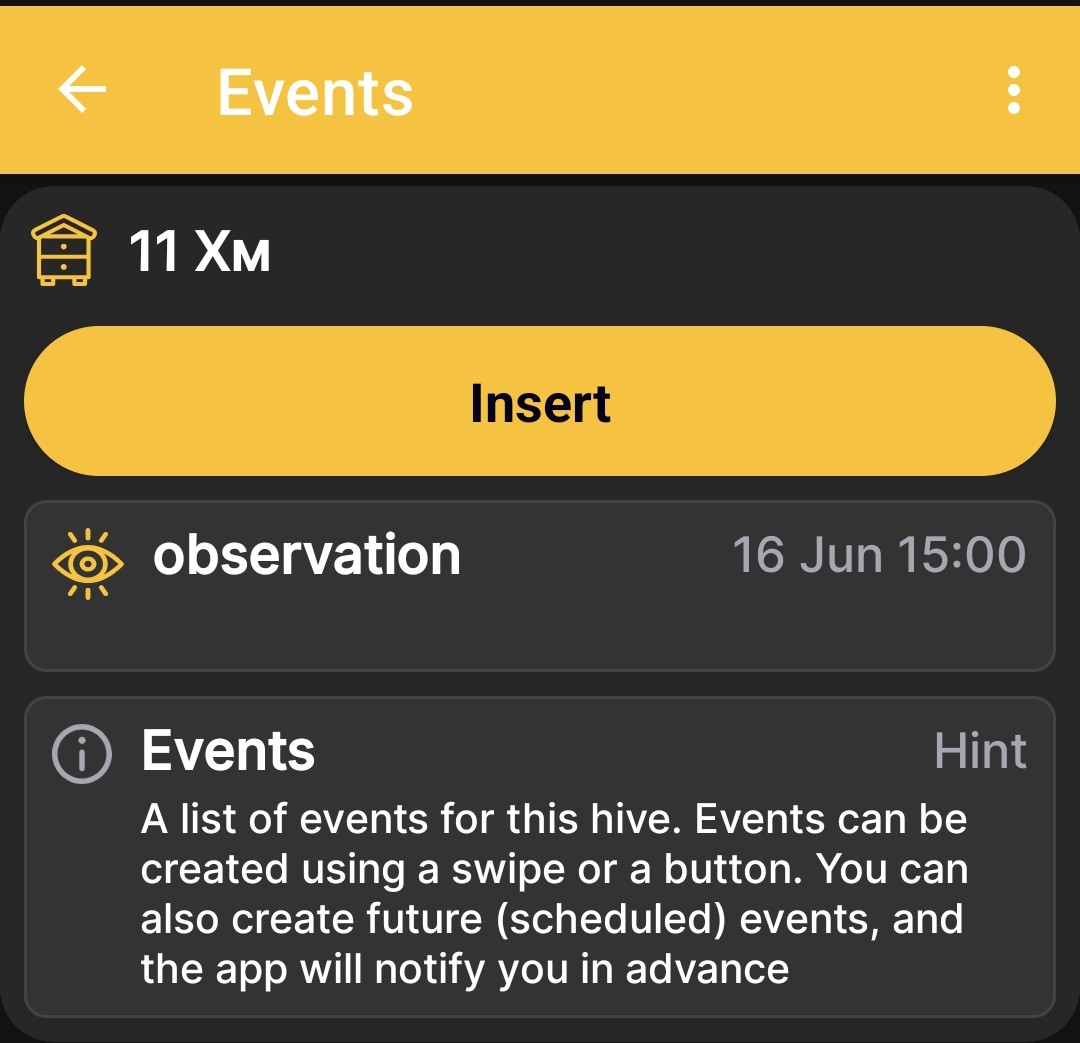
You can also create future scheduled events. The app notifies you in advance so that planned work does not get lost among current records.
Adding or Editing an Event
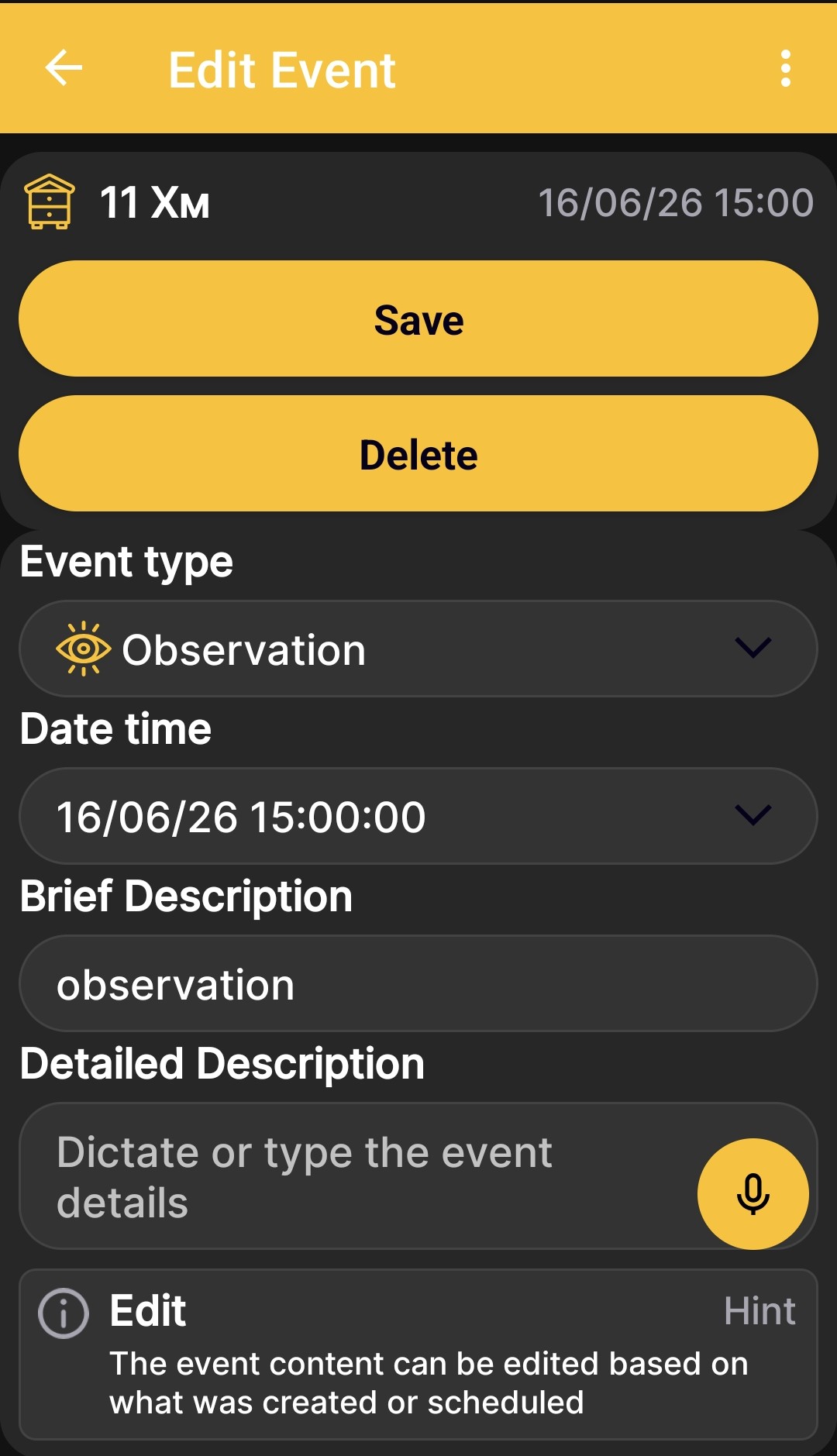
| Element | Purpose |
|---|---|
| Event type | Determines the purpose, icon, and color marker of the entry. |
| Date time | Records when the event occurred or when planned work is due. |
| Brief Description | Gives the completed or planned action a short name. |
| Detailed Description | Stores additional information, inspection results, or a note. |
| Save | Saves a new event or your changes. |
| Delete | Deletes the open event. |
Voice Input
A field marked with a microphone icon supports dictation. The app converts your speech to text that you can edit, search, and copy later. It does not save an audio recording.
Event Types
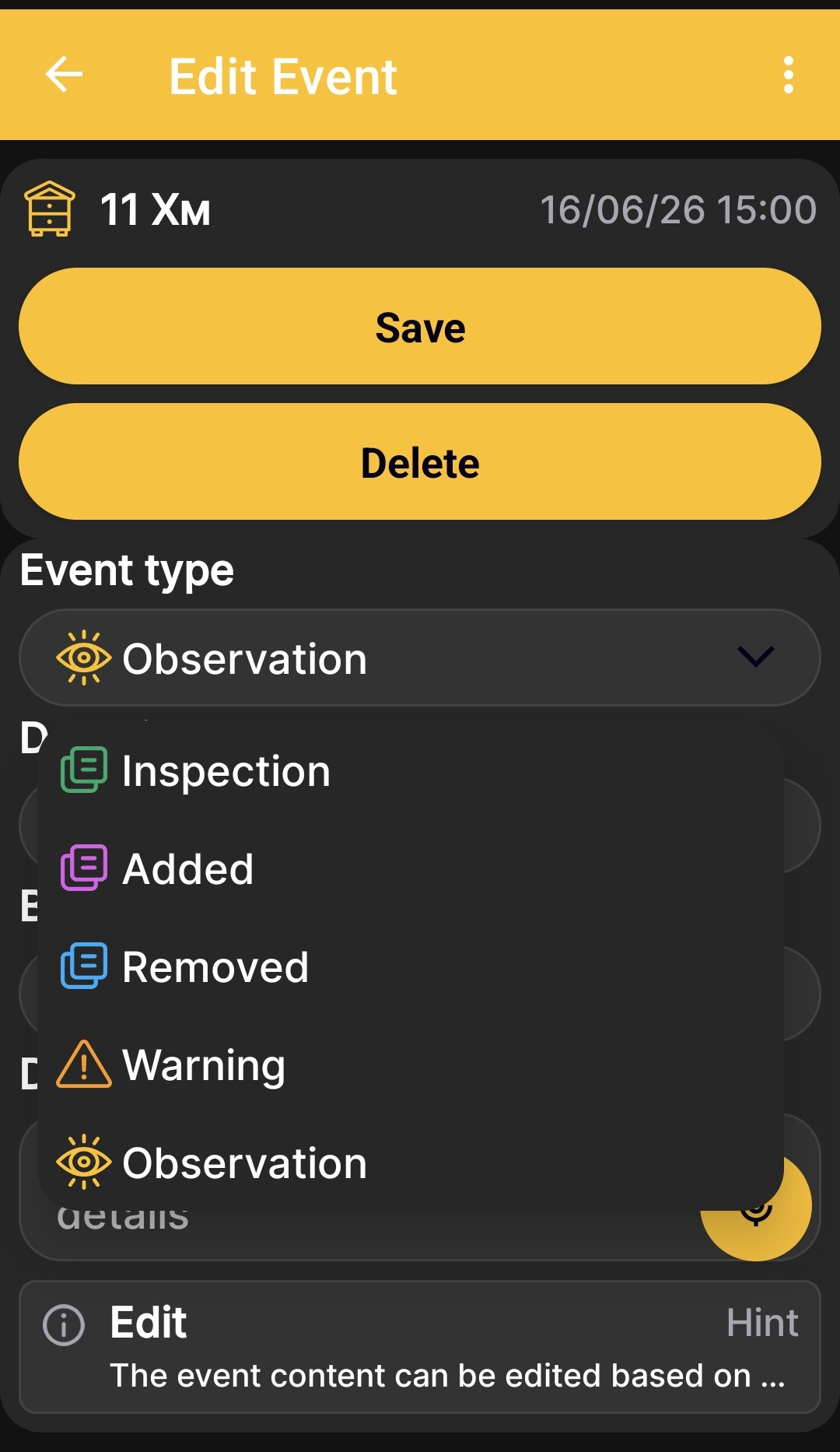
| Type | When to Use It |
|---|---|
| Inspection | To record the results of a hive inspection. |
| Added | To indicate that something was added to the hive. |
| Removed | To indicate that something was removed from the hive. |
| Warning | For events that require special attention. |
| Observation | To record an observed condition or occurrence. |
Event types have different colors and icons. On the charts, events appear with timestamps and are positioned according to when they occurred. This helps you compare apiary work with changes in weight, temperature, and other measurements.